Billing management
This topic introduces how to manage billing in NebulaGraph Cloud, including viewing usage details and managing payment methods.
Prerequisites
- A NebulaGraph Cloud account is registered. For more information, see Step 1. Sign up and log in to NebulaGraph Cloud.
- To perform the operations in this topic, you must have the
Organization Ownerrole in the target organization. For more information, see Access control.
View usage details
Note
- Free trial users cannot view usage details and are automatically directed to the Payment method tab when they access the Billing page.
- The usage data for T day is updated at midnight (UTC) on T+1 day.
- In NebulaGraph Cloud, switch to the organization you want to use.
- In the left-side navigation pane, click Billing.
-
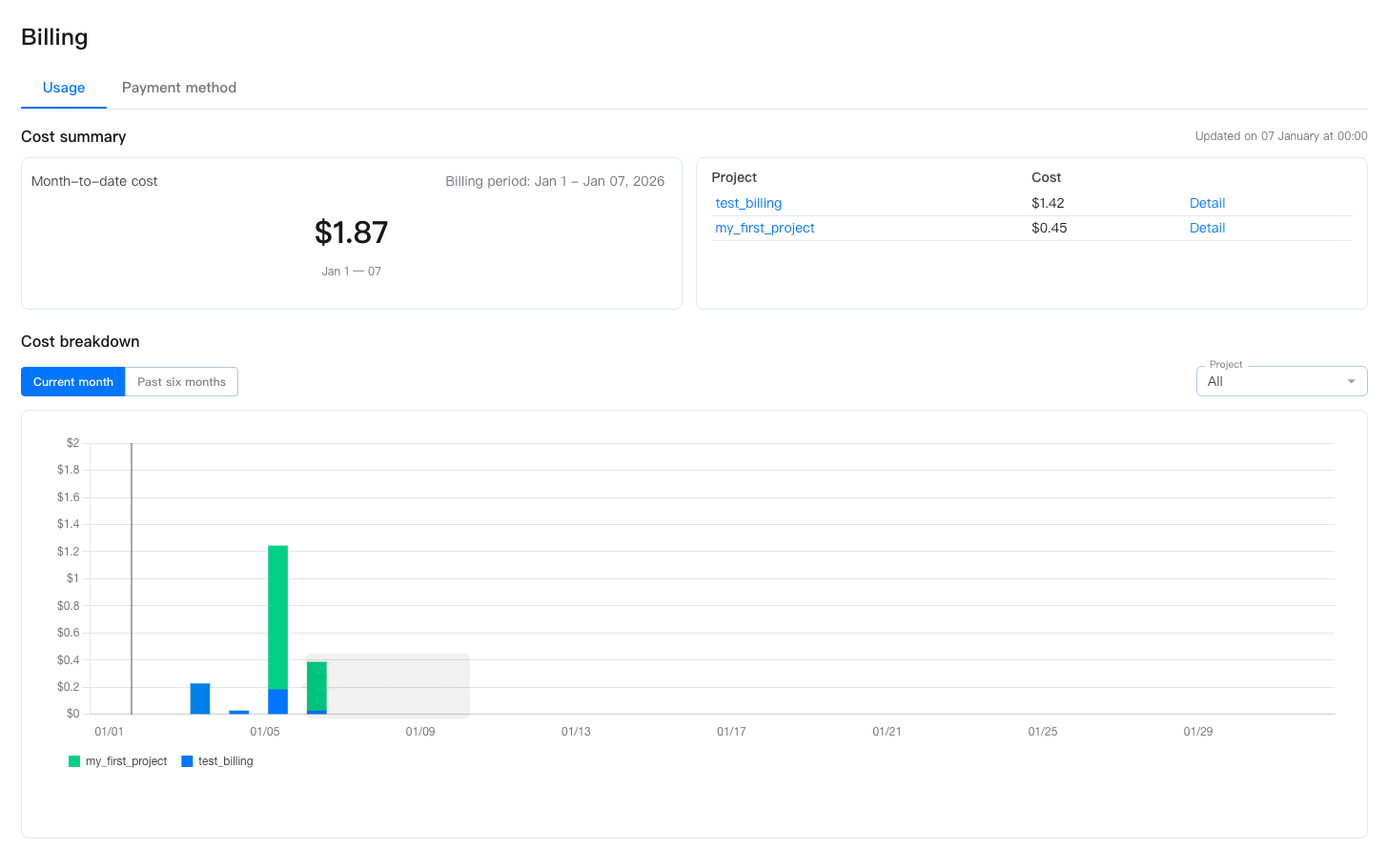
On the Usage tab, you can view the costs of your organization as follows:
- Cost summary: Displays the month-to-date cost of your organization and the individual costs of different projects under the organization.
- Cost breakdown: Displays the cost trends in the current month and in the past 6 months. The costs are broken down by project and can be filtered by project.
- On the Current month tab, you can view the daily cost trend in the current month.
- On the Past six months tab, you can view the monthly cost trend in the past 6 months.
-
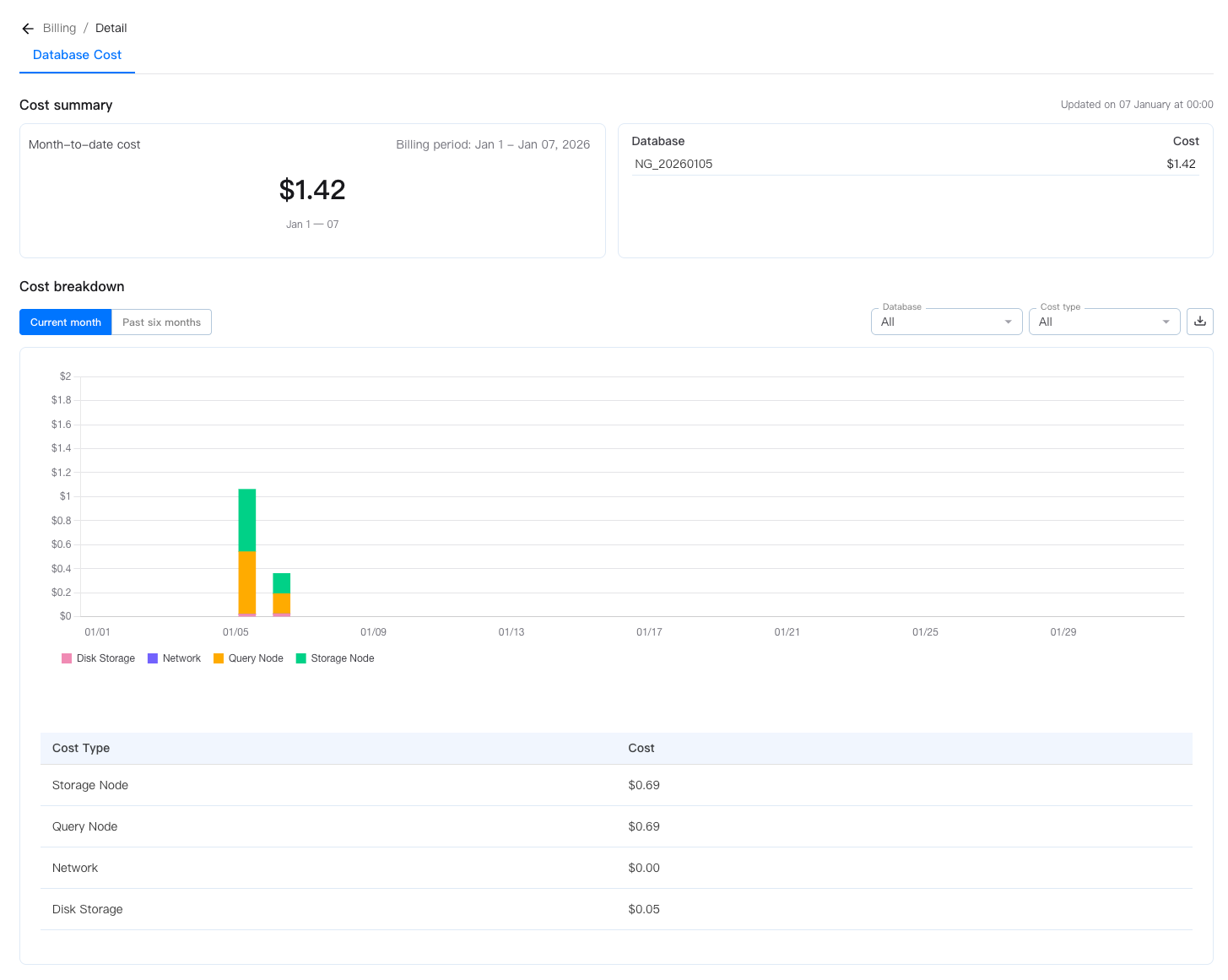
Click the name of a project to view its usage details as follows:
- Cost summary: Displays the month-to-date cost of the project and the individual costs of different database instances under the project.
- Cost breakdown: Displays the cost trends in the current month and in the past 6 months. The costs are broken down by cost type and can be filtered by database instance and cost type.
- On the Current month tab, you can view the daily cost trend in the current month.
- On the Past six months tab, you can view the monthly cost trend in the past 6 months.
Manage your subscription
You can perform the following operations to manage your subscription in NebulaGraph Cloud:
Add a payment method
- In NebulaGraph Cloud, switch to the organization you want to use.
- In the left-side navigation pane, click Billing.
- Click the Payment method tab and then click Add Payment Method.
-
In the Add Payment Method dialog box, select one of the following payment methods:
- Credit Card: Enter your credit card information and click Confirm.
- AWS Marketplace: Click Subscribe. You are prompted to log in to your AWS account and purchase NebulaGraph Cloud on the AWS Marketplace. After the payment is completed, you are automatically redirected to the Billing page.
After the payment method is added successfully, you can view the usage details on the Usage tab.
Change credit card information
- In NebulaGraph Cloud, switch to the organization you want to use.
- In the left-side navigation pane, click Billing.
- Click the Payment method tab.
- Click Replace to update your credit card information.
Cancel your subscription
The way to cancel your subscription differs based on the payment method you used when subscribing to NebulaGraph Cloud:
- If you subscribed to NebulaGraph Cloud via AWS Marketplace, you need to go to AWS Marketplace to unsubscribe from the NebulaGraph Cloud service.
- If you added a credit card as the payment method, you must contact our support team to cancel your subscription.
Note
After the subscription is canceled, all database instances under your current organization are retained for 6 hours before being deleted. You can re-subscribe to a paid plan to continue using the service during this 6-hour grace period.